In this article I will explain with an example, how to enable
Static files in
ASP.Net Core (.Net Core 10).
Static files such as Image files, CSS,
JavaScript (JS) and Image files does not work in
ASP.Net Core app unless it is placed at proper location with the necessary settings.
Software Information
Static Files Location
The Static Files are stored inside the wwwroot Folder (Directory).
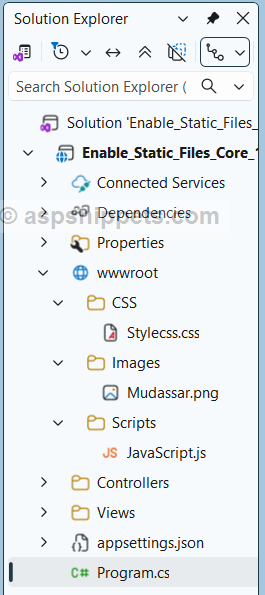
Stylecss.css
body
{
font-family:Arial;
font-size:10pt;
}
table
{
border:1px solid #ccc;
border-collapse:collapse;
}
table th
{
background-color:#F7F7F7;
color:#333;
font-weight:bold;
}
table th,table td
{
padding:5px;
border:1px solid #ccc;
}
#img
{
height:80px;
width:80px;
}
JavaScript.js
The JS file consists of following
JavaScript function inside which the name of the Image is set in the
img element and image is displayed.
function ShowName() {
var name = document.getElementById("txtName").value;
var img = document.getElementById("img");
img.src = "/images/" + name +".png";
img.alt = name;
document.getElementById("trImage").style.display = "table-row";
};
Enable access to Static Files in ASP.Net Core
Inside the Program.cs class, the MapStaticAssets method of WebApplication class is called which makes Static files accessible in ASP.Net Core application.
Note: In .Net Core 10, MapStaticAssets function has been introduced which is more efficient than UseStaticFiles function. Though you can still use UseStaticFiles function as it has not been depreciated.
var builder = WebApplication.CreateBuilder(args);
//Enabling MVC
builder.Services.AddControllersWithViews();
var app = builder.Build();
//Enabling Static Files.
app.MapStaticAssets();
//Configuring Routes
app.MapControllerRoute(
name:"default",
pattern:"{controller= Home}/{action= Index}/{id?}");
app.Run();
Controller
The Controller consists of following Action method.
Action method for handling GET operation
Inside this Action method, simply the View is returned.
public class HomeController : Controller
{
public IActionResult Index()
{
return View();
}
}
View
Inside the View, the CSS and JS files are inherited inside the HEAD tag.
The View consists of an HTML Table which consists of following elements:
TextBox – For capturing Image file name.
Button – For calling ShowName JavaScript function.
Img – For displaying Image.
The Button has been assigned with an
onclick JavaScript function.
When the Button is clicked, the
ShowName JavaScript function (discussed later) is called.
@{
Layout = null;
}
<!DOCTYPE html>
<html>
<head>
<meta name="viewport" content="width=device-width" />
<title>Index</title>
<link href="~/CSS/Stylecss.css" rel="stylesheet" />
<script src="~/Scripts/JavaScript.js"></script>
</head>
<body>
<table>
<tr>
<td>Name</td>
<td><input type="text" id="txtName" /></td>
</tr>
<tr>
<td></td>
<td><input type="button" id="btnSubmit" value="Submit" onclick="ShowName();" /></td>
</tr>
<tr id="trImage" style="display:none">
<td colspan="2" align="center"><img id="img" alt="" /></td>
</tr>
</table>
</body>
</html>
Screenshot

Testing Log
Compiled in: Visual Studio 2026
Framework: .Net Core 10.
Result: 100% Success
Downloads
